WebP to JPG, PNG & PDF Converter

Fast, Free & Secure Online Image Converter

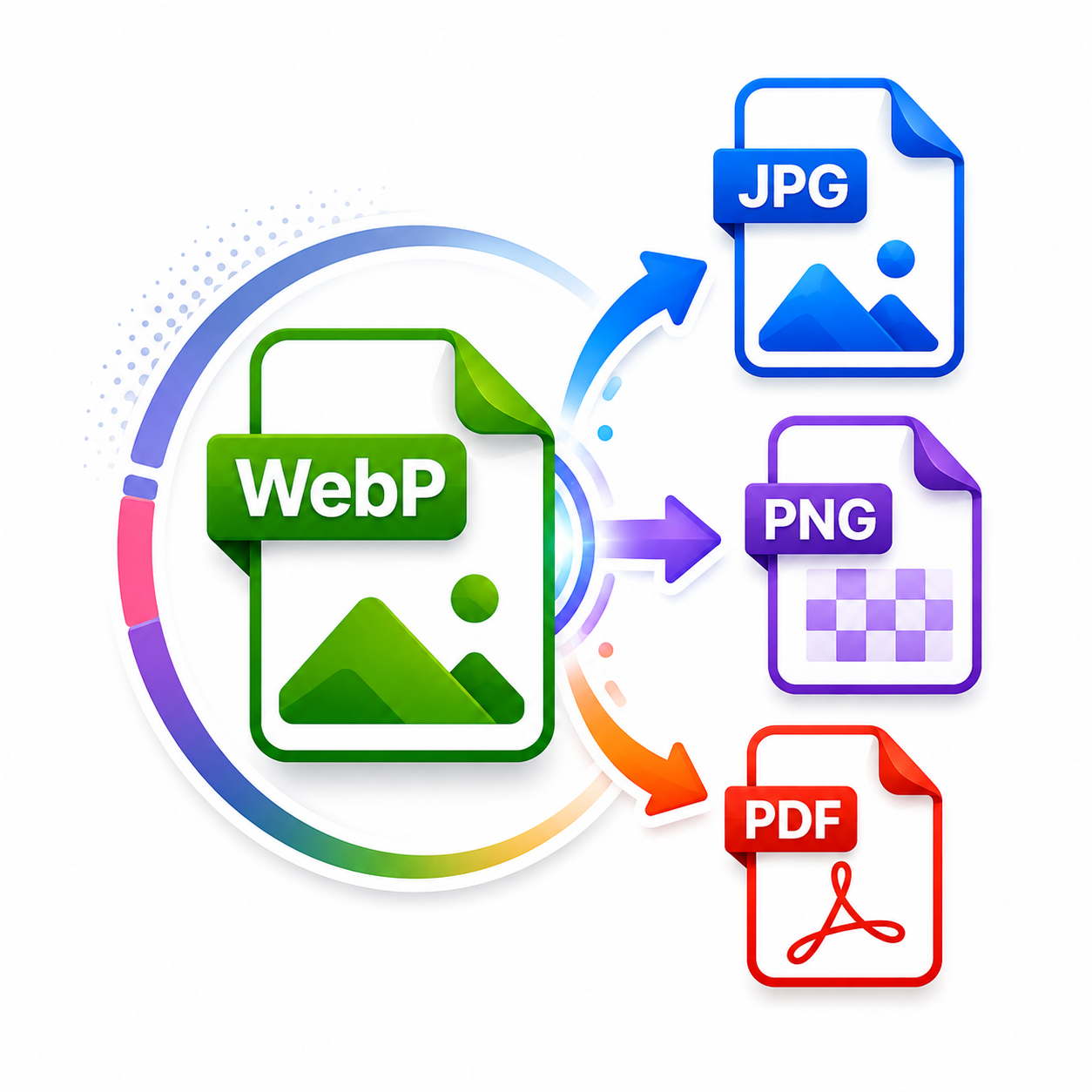
Convert WebP images to JPG, PNG, or PDF quickly with the free SF Tool WebP Converter. Upload up to 100 WebP images at once, select your preferred output format, and download high-quality converted files in seconds. Convert WebP to JPG for wider compatibility, WebP to PNG to preserve image transparency, or combine multiple WebP images into one PDF document. You can download JPG and PNG files individually or save all converted images together in a ZIP file. The tool is fast, mobile-friendly, and easy to use on computers, tablets, and smartphones. Your images are processed directly in your browser and are not uploaded to our server, helping protect your privacy. No registration, installation, or technical knowledge is required. Upload your WebP images, choose JPG, PNG, or PDF, click Convert, and download your files instantly with SF Tool.
SF Tool

WebP to JPG, PNG & PDF Converter

Convert up to 100 WebP images to JPG, PNG, or PDF quickly and securely.

Drag & Drop WebP Images Here

or click to browse files · up to 100 images

Your images are processed securely in your browser and are not uploaded to our server.

SF TOOL FEATURES

Powerful WebP Conversion Features

Everything you need to convert WebP images into JPG, PNG, or PDF with a fast, secure, and mobile-friendly experience.

Ultra Fast Conversion

Convert WebP images into JPG, PNG, or PDF within seconds using optimized browser-based processing.

🖼️

Batch Upload Support

Upload up to 100 WebP images at once and convert them together without repeating the process.

📥

Flexible Download Options

Download converted JPG or PNG files individually or save all images together in a single ZIP archive.

📄

Combine Images into One PDF

Merge multiple WebP images into a single high-quality PDF document while preserving image clarity and order.

🔒

Secure & Private

Your images are processed directly in your browser and are never uploaded to any server, ensuring complete privacy.

📱

Fully Mobile Friendly

Enjoy a smooth experience on desktops, tablets, Android phones, and iPhones with a responsive modern interface.

HOW TO USE

How to Convert WebP Images

Convert your WebP images into JPG, PNG, or PDF in just a few simple steps. No software installation or registration is required.

1
📂

Upload WebP Images

Click Select WebP Images or drag and drop your files. You can upload up to 100 WebP images at once.

2
🎯

Select Output Format

Choose your preferred format — JPG, PNG, or PDF before starting the conversion.

3

Convert Images

Click the Convert button. The tool will securely process your images directly inside your browser.

4
📥

Download Files

Download JPG or PNG files individually or as a ZIP archive. If PDF is selected, download one combined PDF document.

FORMAT COMPARISON

WebP vs JPG vs PNG vs PDF

Compare the most popular file formats and choose the best option for your images based on quality, transparency, compression, compatibility, and document sharing.

Feature WebP JPG PNG PDF
Best For Web Images Photos Graphics & Logos Documents
Image Quality ★★★★★ ★★★★☆ ★★★★★ ★★★★★
File Size Very Small Medium Large Depends on Images
Transparency ✔ Yes ✖ No ✔ Yes Not Applicable
Compression Excellent Good Low Document Based
Browser Support Modern Browsers Universal Universal Universal
Photo Printing Limited Excellent Excellent Excellent
Supports Multiple Images No No No ✔ Yes
Ideal Use Websites Photography Design & Editing Sharing & Printing
FAQs

Frequently Asked Questions

1. How do I convert WebP to JPG online for free?

Upload your WebP images, select JPG as the output format, click Convert, and download the converted images. The SF Tool WebP Converter works directly in your browser without requiring software installation or registration.

2. Can I convert multiple WebP images at once?

Yes. This tool supports batch conversion of up to 100 WebP images at one time. After conversion, you can download files individually or download all JPG or PNG images together as a ZIP archive.

3. Can I convert WebP images to PNG without losing transparency?

Yes. When you choose PNG as the output format, transparent areas are preserved whenever possible, making PNG suitable for logos, icons, graphics, and images with transparent backgrounds.

4. Can I convert multiple WebP images into one PDF?

Yes. Select PDF as the output format and the tool will combine all uploaded WebP images into a single PDF document, keeping the image order for easy sharing or printing.

5. Are my uploaded WebP images secure?

Absolutely. Your images are processed locally inside your web browser and are not uploaded to our servers. This helps protect your privacy and keeps your files under your control.

6. Does this WebP converter work on mobile devices?

Yes. The SF Tool WebP Converter is fully responsive and works on Android phones, iPhones, tablets, laptops, and desktop computers using modern web browsers.

7. Which format should I choose: JPG, PNG, or PDF?

Choose JPG for smaller photo files, PNG when you need high quality or transparency, and PDF when you want to combine multiple images into one document for printing, sharing, or archiving.