
Free JPEG to PDF Converter Online
If you have a PDF document and need its pages as image files, converting PDF to JPEG can make the document easier to use, share, upload, and print. A PDF is useful for keeping documents together, while a JPEG image is more convenient when you need a specific page as a picture.
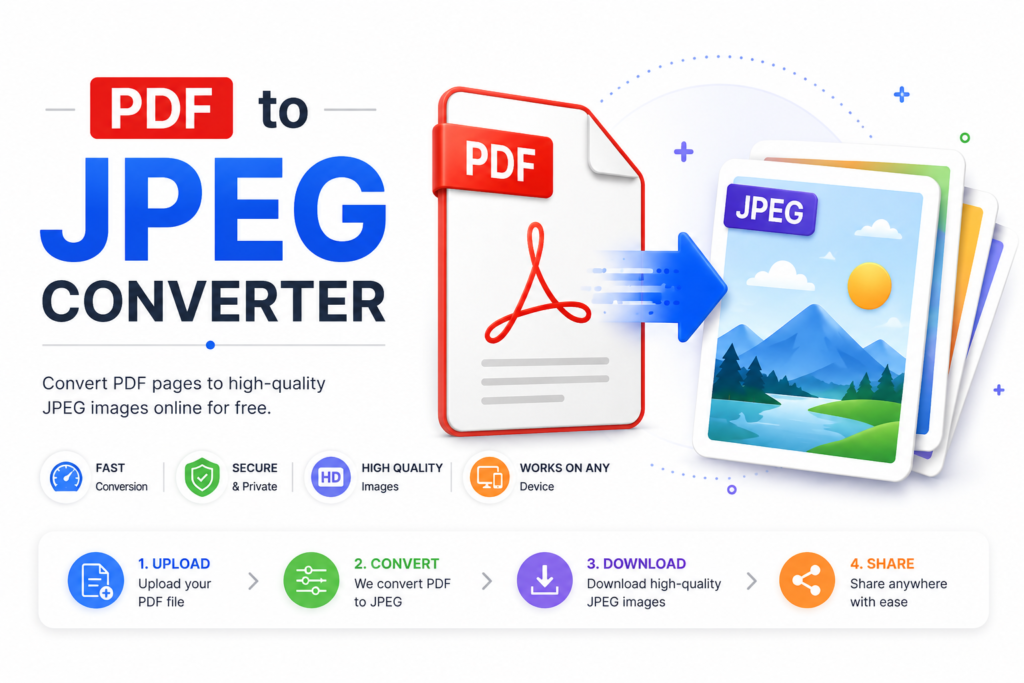
With the SF Tool PDF to JPEG Converter, you can convert PDF files into JPEG images directly from your browser. You do not need to install desktop software or create an account before using the tool. The converter is designed to work on computers, tablets, and mobile phones.
Whether you want to convert one PDF page, a multi-page PDF, or multiple PDF documents, an online PDF to JPG converter can save time and make the process much easier.
What Is a PDF to JPEG Converter?
A PDF to JPEG converter is an online tool that changes PDF pages into JPEG image files. Instead of keeping the information inside a PDF document, each page can be converted into an image that you can open, share, upload, or use like any other picture.
PDF is mainly used for documents such as forms, reports, certificates, notes, invoices, and other files where the original layout needs to be maintained. JPEG, on the other hand, is one of the most widely supported image formats.
For example, if you have a five-page PDF and want to use its pages as images, a PDF to JPEG converter can turn the pages into separate JPEG images.
The SF Tool converter also supports single and multiple PDF files and provides an option for password-protected PDF files when a password is required.
Why Convert PDF to JPEG?
There are many situations where a JPEG image is more convenient than a PDF file.
You may need to convert PDF to JPG when a website only accepts image files, when you want to share one page through a messaging application, or when you want to use a PDF page as an image in a presentation or document.
Some common reasons to convert PDF to JPEG include:
- Sharing individual PDF pages as images
- Uploading a document page to an image-based form
- Using a PDF page in a presentation
- Creating image previews of PDF pages
- Printing individual pages as images
- Sharing scanned documents easily
- Using PDF pages in image editing software
- Saving important PDF pages as JPEG images
For example, if a PDF contains ten pages but you only need page three as a picture, converting the PDF to JPEG allows you to work with the page as an individual image.
How to Use the PDF to JPEG Converter
Using the SF Tool PDF to JPEG Converter is simple. You can complete the conversion directly in your browser without installing additional software.
Step 1: Select Your PDF
Open the Sftool.usacelebhub.com and open PDF to JPEG Converter and click the PDF file selection button. Choose the PDF document that you want to convert from your computer, phone, or tablet.

If you have more than one PDF file, you can select multiple files where supported by the upload interface.
Before starting the conversion, make sure that your PDF opens normally and is not damaged.
Step 2: Upload Your File
After selecting your PDF, the file will appear in the converter interface. Check the selected file before continuing.
If your PDF is password protected, enter the required password using the password option provided by the tool. You should only use a password that you are authorized to use.
For large documents, give the browser a little time to prepare the file before starting the conversion.
Step 3: Start Conversion
Once your PDF is ready, click the Convert to JPEG or conversion button shown by the tool.
The converter processes the PDF pages and creates JPEG images from them. A multi-page PDF can produce separate image files for its individual pages.
The time required can depend on the size of the PDF, number of pages, and complexity of the document.
Step 4: Download JPEG Images
After the conversion is complete, download the generated JPEG images using the available download option.
You can then save the images to your device and use them for sharing, uploading, printing, or other purposes.
If your PDF contains multiple pages, check the generated files to make sure all required pages have been converted.
Step 5: Check Your Converted Images
After downloading the JPEG files, open the images and check the text, graphics, signatures, photos, and other important information.
This is especially useful when converting documents such as certificates, forms, invoices, or scanned pages.
If you notice that the result is not suitable for your purpose, try using the original PDF again or check whether the source PDF itself has low-quality content.
What Happens When You Convert a PDF to JPEG?
When you convert a PDF to JPEG, the content of each PDF page is rendered as an image.
For example, a three-page PDF can be converted into three separate JPEG images. Each image represents one page of the original document.
Text inside the PDF becomes part of the image. This means that after conversion, you normally cannot select or edit the text in the same way you can inside an editable PDF document.
This is why PDF and JPEG are useful for different purposes.
A PDF is generally better when you need a document format, while JPEG is more convenient when you need a visual image of the page.
PDF vs JPEG – What’s the Difference?
PDF and JPEG are both common file formats, but they are designed for different uses.
| Feature | JPEG | |
|---|---|---|
| File Type | Document format | Image format |
| Best For | Documents and forms | Images and page previews |
| Multiple Pages | Yes | Usually separate images |
| Text Selection | Possible depending on the PDF | Not normally possible |
| Easy Image Sharing | Less convenient | Very convenient |
| Website Image Upload | Depends on the website | Widely supported |
| Editing | Can be edited with PDF tools | Requires image editing software |
| Printing | Excellent for documents | Good for images |
| File Extension | .jpg / .jpeg | |
| Common Uses | Forms, reports, invoices, certificates, ebooks | Photos, previews, scanned pages, web images |
| Page as an Image | Not an image file | Yes |
| Sharing a Single Page | Requires sharing the PDF or extracting a page | Easy to share as an image |
Who Can Use a PDF to JPEG Converter?
A PDF to JPEG converter can be useful for many different users.
Students
Students can convert PDF notes, assignments, or individual pages into images when they need to share a specific page or use it in another application.
Teachers
Teachers can turn selected PDF pages into images for presentations, online classes, worksheets, or educational material.
Office Users
Office workers can convert invoices, reports, forms, and other document pages into images when an image format is more convenient.
Freelancers
Freelancers can convert document pages into JPEG files before adding them to presentations, portfolios, or client materials.
Website Users
Some websites accept JPG or JPEG files but do not accept PDF files. In such cases, converting a PDF page into JPEG can be useful.
Mobile Users
People who mainly work from smartphones can use an online PDF to JPEG converter without installing a dedicated desktop application.
Benefits of Converting PDF to JPEG
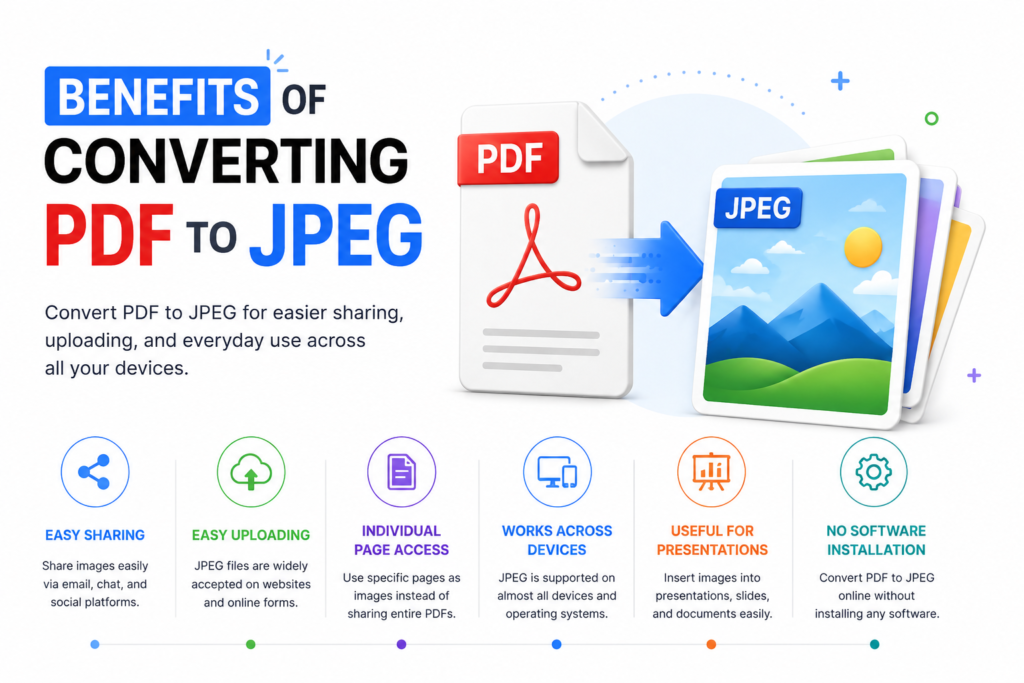
| Benefit | How It Helps |
|---|---|
| Easy Sharing | JPEG images can be easily shared through messaging apps, email, and social platforms without requiring the receiver to open a PDF viewer. |
| Easy Uploading | Many online forms and websites accept JPG or JPEG images. Converting a PDF page into JPEG can make it easier to upload the required file. |
| Individual Page Access | Instead of sharing an entire PDF, you can convert and use a specific PDF page as an individual image. |
| Works Across Devices | JPEG is supported by most modern phones, tablets, and computers, making it convenient for everyday use. |
| Useful for Presentations | Converted PDF pages can be inserted into presentations, documents, slides, and other projects as image files. |
| No Software Installation | An online PDF to JPEG converter can help you convert files directly in your browser without installing additional PDF conversion software. |
Tips for Better JPEG Results
For better results when converting PDF to JPEG, keep these simple tips in mind:
Use a good-quality PDF:
If the original PDF is blurry or low quality, the converted JPEG may also appear unclear.
Avoid unnecessarily large files:
Very large PDFs with many pages can take longer to process. If you only need a few pages, consider using a smaller document when possible.
Check the converted images:
Always open the generated JPEG files before uploading or sharing them.
Keep the original PDF:
Do not delete your original PDF until you have confirmed that the converted JPEG images are correct.
Use the correct format:
If a website specifically asks for JPG or JPEG, use the converted image rather than uploading the original PDF.
Check important details:
For certificates, forms, invoices, and other important documents, check names, numbers, signatures, and other details after conversion.
Conclusion
Converting PDF to JPEG is a simple and useful way to turn PDF pages into easy-to-use image files. JPEG images are convenient for sharing, uploading to websites, adding to presentations, and using on different devices.
The SF Tool PDF to JPEG Converter provides an easy way to convert PDF files into JPEG images directly from your browser without installing additional software. Whether you need to convert a single document or multiple PDF files, the tool can help make the process quick and convenient.
For the best results, always use a good-quality PDF and check the converted JPEG images before sharing or uploading them. If you need a simple way to convert PDF to JPEG or PDF to JPG online, the SF Tool Converter can help you complete the conversion in just a few steps.
Frequently Asked Questions (FAQs)
1. How can I convert PDF to JPEG online for free?
Ans: Open the SF Tool PDF to JPEG Converter, select your PDF file, start the conversion, and download the generated JPEG images. No desktop software installation is required.
2. Can I convert PDF to JPG without installing software?
Ans: Yes. You can use an online PDF to JPG converter directly from a modern web browser. This makes the process convenient on computers, tablets, and smartphones.
3. Is PDF to JPEG the same as PDF to JPG?
Ans: Yes. JPEG and JPG are commonly used extensions for the same image format. PDF to JPEG and PDF to JPG generally mean the same type of conversion.
4. Can I convert a multi-page PDF into separate JPEG images?
Ans: Yes. A multi-page PDF can be converted into separate JPEG images, with each image representing a PDF page.
5. Can I convert multiple PDF files?
Ans: Yes. The SF Tool converter supports multiple PDF files through its batch conversion feature, making it useful when you need to process more than one document.
6. Can I convert PDF to JPEG on my phone?
Ans: Yes. The tool is browser-based and designed to work on smartphones, tablets, and desktop devices.
7. Do I need an account to use the converter?
Ans: The SF Tool PDF to JPEG Converter is designed to work without requiring users to create an account before conversion.

Hello, I am Narinder Kumar. I am admin and content manager of this website. I manages website content, free online tools, updates, and overall site performance to ensure a smooth with 5 year+ Experience. Our aim is to make the user’s work easier without wasting time.